
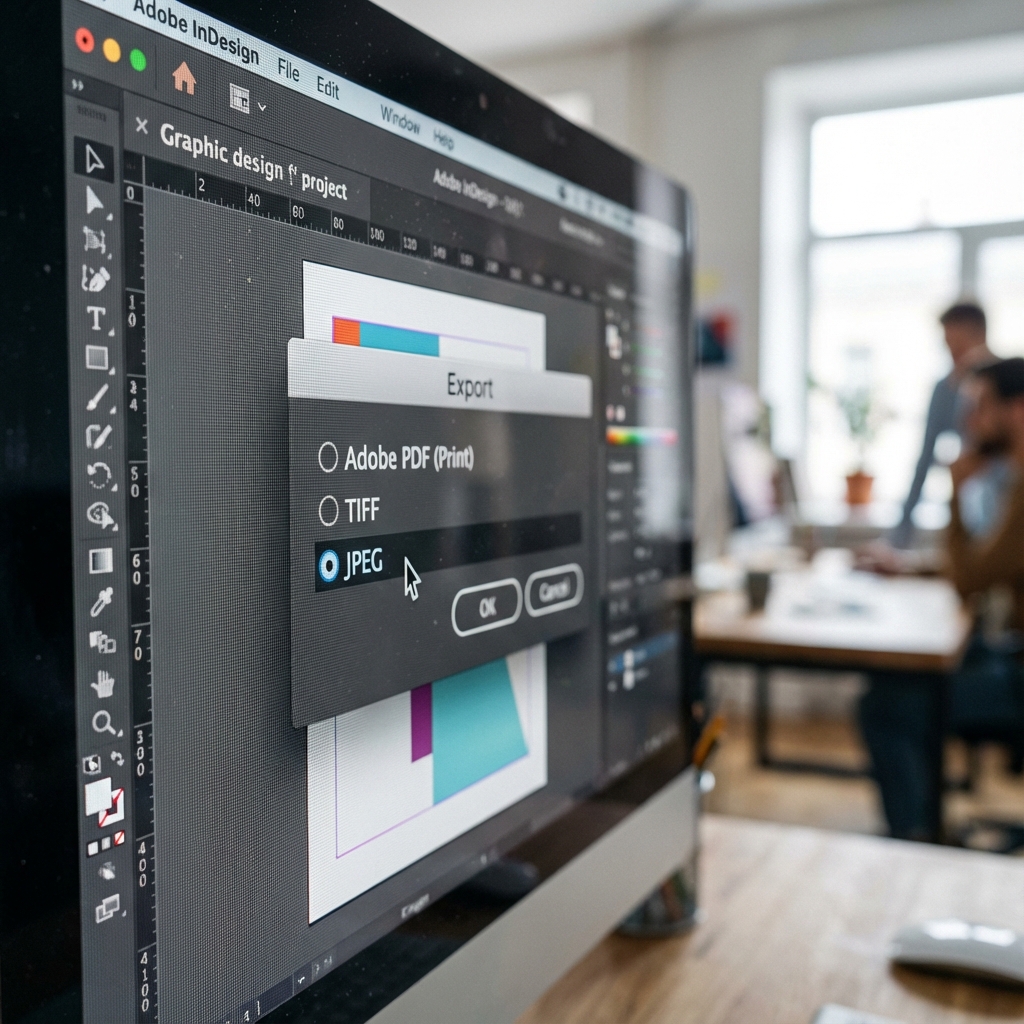
The client sends a file: "logo.jpg", 800x600 px, downloaded from Facebook. They want to print it on a 2x1m banner. When we say "that's impossible," they respond: "But it looks good on the screen!". Here is a guide that will end this problem once and for all. You'll learn which formats work (and why), and which are a disaster waiting to happen.
First: Resolution vs Format
They are not the same. People often confuse:
- File format = "Packaging" (PDF, JPG, TIFF, AI, EPS...)
- Resolution = "Content quality" (300 DPI, 72 DPI, pixels...)
You can have a PDF at 72 DPI (bad) and a JPG at 300 DPI (OK). Format ≠ quality automatically.
Format Ranking: From Best to Worst
TIER S: PDF (Portable Document Format)
Why is it the KING of print shops?
- Universal – every print shop accepts PDF
- Preserves everything – fonts, colors, layers (optional), resolution
- Compressed, but without quality loss (lossless compression possible)
- CMYK ready – can be saved in CMYK (crucial for printing)
- The printer knows what it got – no guessing, no interpreting
When to send PDF?
ALWAYS, if you have a choice. It's the industry standard.
How to prepare the perfect PDF?
- Color mode: CMYK (not RGB!)
- Image resolution: 300 DPI (minimum)
- Fonts: Embedded – otherwise, the print shop won't see them
- Bleeds: +3-5mm on each side
- PDF format: PDF/X-1a or PDF/X-4 (printing standard)
How to save a PDF for printing:
Adobe Illustrator / InDesign: File → Export → PDF → Preset: "Press Quality" or "PDF/X-1a".
Canva Pro: Download → PDF Print (not PDF Standard!).
Photoshop: File → Save As → Photoshop PDF → Preset: "High Quality Print".
🥈 TIER A: AI / EPS (Adobe Illustrator / Encapsulated PostScript)
Vector working formats.
- Infinite scalability – logo 2cm or 2m, same quality
- Editable – the print shop can correct errors (if they ask for permission)
- Small files (because vectors are math, not pixels)
- Only for vector graphics – not for photos
- Not every print shop accepts (they prefer PDF)
When to send AI/EPS?
- When the print shop explicitly asks for a "working file"
- Logo / vector illustrations (without photos)
- Large format material (banners, roll-ups) – easier to scale
But beware: If you send AI, also include PDF – just in case.
TIER B: TIFF (Tagged Image File Format)
Format for high-quality photography.
- Lossless compression – does not lose quality (unlike JPG)
- Supports CMYK – ideal for photos for printing
- Transparency (alpha channel) possible
- Huge files – sometimes 50-100 MB per photo
- Only raster – not suitable for logos
When to send TIFF?
- Product catalogs with professional photos
- Photo albums / art books
- When the print shop asks for "high-res photos" (instead of JPG)
📉 TIER C: JPG / JPEG (Joint Photographic Experts Group)
The most popular... and the most problematic.
- Universal – every program opens JPG
- Small files (compression)
- Lossy compression – every save = quality loss
- Only RGB (technically CMYK JPG exists, but rare)
- No transparency
- Low resolution (often 72 DPI from the internet)
When is JPG OK?
- Photos inside a project (but not as the whole project!)
- ONLY if it has 300 DPI at the target size
- Never for logos (pixelation when scaling)
Most common mistake: The client makes a business card in Canva, exports as JPG (72 DPI), sends to the print shop. Result? Blurry, pixelated, not suitable for printing. Canva Pro has a "PDF Print" option – always use it.
TIER F: PNG, GIF, BMP, WEBP (Web formats)
Do not send these formats to the print shop.
- PNG: Only RGB, often 72 DPI. OK for a logo on a website, NOT OK for printing.
- GIF: Max 256 colors. It's a format from the 90s. No.
- BMP: Huge files without compression. Outdated.
- WEBP: New Google format. Print shops do not support it (yet).
Table: Which formats for which materials?
| Material | Format #1 (best) | Format #2 (acceptable) |
|---|---|---|
| Business Cards | PDF (PDF/X-1a) | AI / EPS |
| Flyers / Posters | PDF (Press Quality) | TIFF (for photos) |
| Banners / Roll-ups | PDF (100-150 DPI OK) | AI (vectors) |
| Logo (for archive) | AI / EPS (vector) | PDF (vector) |
| Catalogs / Books | PDF (PDF/X-4) | InDesign Package (.indd + links) |
| Photos (standalone) | TIFF (300 DPI, CMYK) | JPG (max quality, 300 DPI) |
Checklist: Before Sending the File
-
Format: PDF/X-1a or PDF/X-4?
If not – convert to PDF. -
Color mode: CMYK?
RGB = colors will be different after printing. Convert to CMYK. -
Resolution: 300 DPI for business cards/flyers?
100-150 DPI for banners, 300 DPI for small formats. -
Fonts: Embedded?
In PDF: Edit → Preferences → check "Embed all fonts". -
Bleeds: +3-5mm added?
Without bleeds = white edges after cutting. -
File size: realistic?
PDF business card = 1-5 MB. If you have 50 MB – something is wrong (probably RGB instead of CMYK). -
Test print: Did you do it?
Print on a regular home printer. Are the colors OK? Is the text readable?
Common Mistakes (and How to Avoid Them)
1. "I sent a JPG from Google Images"
Problem: Images from Google are usually 72 DPI, small (500x500 px). Stretching to A4 = pixelation.
Solution: Only use images from stock photo banks in high-res (Unsplash, Shutterstock) or your own at 300 DPI.
2. "PDF, but in RGB"
Problem: PDF can be in RGB. Print shops print in CMYK. Colors will be different (especially red and blue).
Solution: Before exporting: Image → Mode → CMYK (Photoshop) or File → Document Color Mode → CMYK (Illustrator).
3. "PNG logo with transparent background"
Problem: PNG is RGB. Transparency in print = white background (because paper is white).
Solution: Convert the logo to vector (AI/EPS) or export PDF with a white background (if printing on white paper).
4. "I saved Word as PDF"
Problem: Word generates PDF in low quality (often 150 DPI for images). Fonts may not be embedded.
Solution: Better to redo the project in Canva Pro, Adobe InDesign, or Affinity Publisher.
FAQ: Quick Answers
Can I send a .INDD (InDesign) file?
Technically yes, but better not. Export to PDF/X-4. If the print shop asks for INDD, send a "package" (File → Package) – it will pack all fonts and links.
Is Canva Free enough?
Unfortunately not. Canva Free exports only JPG/PNG at 72-96 DPI. Canva Pro has a "PDF Print" option (300 DPI) – it's the minimum for printing.
I have a DOCX with a business card. Is that enough?
No. Word is a text editor, not a DTP tool. Export to PDF (but the quality will still be poor). Better to redo in a professional tool.
Is SVG suitable for printing?
SVG is a vector (great!), but... it's a web format. Most print shops do not support SVG. Convert to AI, EPS, or PDF (in Illustrator: File → Save As → AI).
Summary: Your Cheat Sheet
- Always send PDF (PDF/X-1a or PDF/X-4)
- CMYK, not RGB – otherwise, colors will be different
- 300 DPI for small formats (business cards, flyers), 100-150 DPI for banners
- Embed fonts – the print shop must see them
- Add bleeds (+3-5mm) – without them, white edges
- AI/EPS for logos (vectors), TIFF for professional photos
- JPG only as a last resort (and in 300 DPI!)
- PNG/GIF/WEBP = NO for printing
Golden rule: If the print shop says "file incorrect" – these are not adventures. It means the print will be poor. Correct the file.
Need a professional graphic design?
Fill out the form – we will prepare an innovative design for your company in the appropriate format, ready for printing.
Order a design