
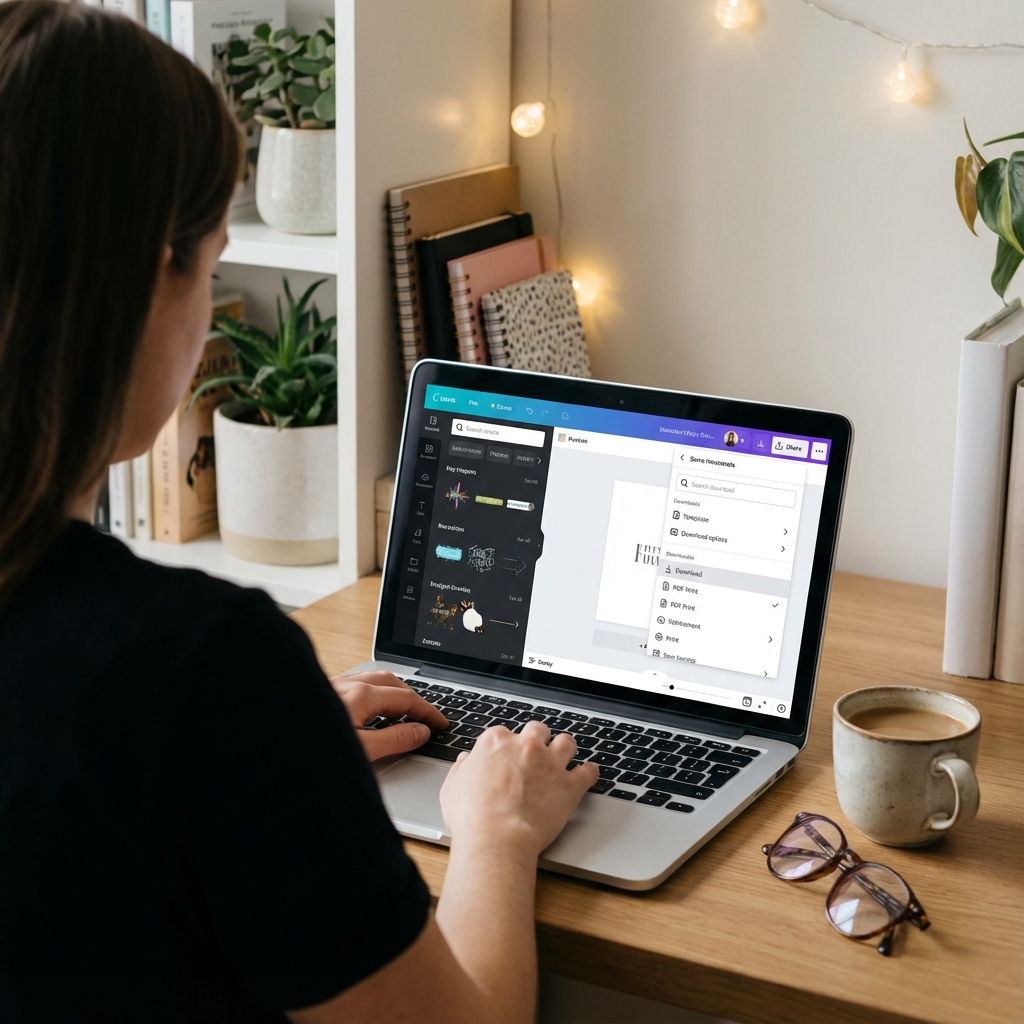
Designing in Canva is super easy. Drag & drop, ready-made templates, millions of elements. But then the client downloads the file, sends it to the printer, and hears: "The file has too low resolution". Why? Because Canva has three different download options – and only one of them is suitable for printing. Here is a guide that will make your Canva designs print crystal clear.
Problem: Canva Free vs Canva Pro
The first thing you need to know:
Canva FREE does NOT allow downloading files in print quality. Period.
Canva Free exports only:
- JPG / PNG – maximum 96 DPI
- PDF Standard – compressed, lower quality
And the printer needs at least 300 DPI. So Canva Free = mathematically impossible for professional printing.
Solution?
- Canva Pro – 119 PLN/month (or 12.95 USD)
- Gives access to PDF Print (300 DPI, CMYK optionally, bleeds)
- You can activate a 30-day free trial
If you print regularly (business cards, flyers, banners) – Canva Pro pays off after the first project.
Step-by-step guide: How to download a print file from Canva Pro
Step 1: Finish the project
Make sure the project is ready:
- All elements in place
- Texts checked (typos!)
- Colors OK (remember: they will be darker in print than on screen)
Step 2: Click "Share"
In the top right corner of the Canva interface, you'll find the purple button "Share" or "Share".
Step 3: Select "Download"
From the dropdown menu, select "Download" or "Download".
Step 4: CRUCIAL – Select "PDF Print"
This is where most users make a mistake. You will see a list of formats:
- PNG – NO (only 96 DPI, RGB)
- JPG – NO (only 96 DPI, lossy compression)
- PDF Standard – NO (compressed, lower quality)
- PDF Print – YES! (300 DPI, ready for print)
Note: The "PDF Print" option is available ONLY in Canva Pro. If you don't see it – you don't have Pro.
Step 5: Check PDF Print settings
After selecting "PDF Print," a window with options will appear:
-
Flatten PDF
Check YES – the printer doesn't need editable layers. -
Crop marks and bleed
Check YES – the printer needs bleeds (+3mm on each side). -
Convert to CMYK (optional)
If the printer explicitly asks for CMYK – check it. But beware: colors may change (especially light blues and oranges).
RGB or CMYK:
Most printers prefer RGB from Canva. Why? Because Canva is not a professional DTP tool – its conversion to CMYK is... imperfect. It's better to send RGB and let the printer convert it in RIP (Raster Image Processor). Ask your printer what they prefer.
Step 6: Click "Download"
The PDF file will be generated and downloaded to your computer.
Step 7: Check the file BEFORE sending it to the printer
Open the PDF and verify:
- Is everything in place?
- Is the text sharp? (zoom 200%)
- Are the images clear?
- Are there crop marks in the corners?
Common mistakes (and how to avoid them)
1. "I export JPG from Canva Free"
Problem: JPG from Canva Free is 72-96 DPI. Too little for printing (300 DPI needed).
Solution: Purchase Canva Pro (even for a month) or transfer the project to Adobe Illustrator / Affinity Designer.
2. "I choose PDF Standard instead of PDF Print"
Problem: PDF Standard compresses photos and graphics (lower resolution). No bleeds.
Solution: Always choose PDF Print, never PDF Standard for printing.
3. "I use images from Google Images"
Problem: Images from Google are usually 72 DPI, low resolutions. They look OK in Canva, but when printed = pixelated.
Solution: Use only images from:
- Canva library (built-in high-quality images)
- Unsplash / Pexels (available, high-res)
- Shutterstock / Adobe Stock (paid, professional)
- Your own photos (minimum 3000x2000 px for A4)
4. "I upload logos as PNG from Google"
Problem: Logos from Google are usually 200x200 px. Stretching to a business card (5x5 cm) = blurry.
Solution: Upload vector logos (SVG) or high-resolution PNG (minimum 1000x1000 px).
5. "I don't add bleeds"
Problem: When cutting, the printer may "cut off" part of the project. Without bleeds, white edges will appear.
Solution: Check "Crop marks and bleed" in PDF Print options.
Are there alternatives to Canva Pro?
If you don't want to pay for Canva Pro, you have a few options:
1. Adobe Express (formerly Adobe Spark)
- Free version allows PDF at 300 DPI
- Integration with Adobe Stock
- Smaller template library than Canva
2. Affinity Publisher
- One-time payment (~300 PLN), no subscription
- Professional DTP tool
- Full control over CMYK, bleeds, fonts
- Higher learning curve than Canva
3. Canva Free → Printer makes corrections
- Some printers offer a "file preparation for print" service
- You send the project from Canva Free, they convert it to 300 DPI
- Cost: usually an additional 50-100 PLN
How to check if a file is 300 DPI?
You downloaded a PDF from Canva. How to be sure it's 300 DPI?
Method 1: Open in Adobe Acrobat Reader
- Open the PDF
- File → Properties
- "Description" tab
- Check "Page size" and "Resolution"
If you see "300 DPI" or "300 ppi" – OK.
Method 2: Ask the printer
Send the file to the printer with the question: "Is this file suitable for printing?". They will tell you immediately if something is wrong.
Comparison: PDF Standard vs PDF Print
| Feature | PDF Standard | PDF Print |
|---|---|---|
| Resolution | ~150 DPI (compressed) | 300 DPI |
| Bleeds | No | Yes |
| Crop marks | No | Yes |
| CMYK conversion | No | Optional |
| File size | Small (1-3 MB) | Larger (5-15 MB) |
| Suitable for print? | NO | YES |
FAQ: Quick answers
Can I print from Canva Free?
Technically yes, but not professionally. Canva Free provides a maximum of 96 DPI – too little for business cards, flyers, banners. OK for home printing, NOT OK for printers.
Is a 30-day Canva Pro trial enough?
Yes! You can create projects in Canva Free for a month, then activate the trial for 1 day, export everything in PDF Print, and cancel the subscription.
Why is my PDF from Canva huge (50 MB)?
Probably you have a lot of high-resolution images OR you didn't check "Flatten PDF". Flattening reduces the size by ~30-50%.
Do I need to convert to CMYK in Canva?
You don't have to. Most printers prefer RGB from Canva (easier for them to convert). But if the printer explicitly asks for CMYK – check the option.
Summary: Your cheat sheet
- Canva Free ≠ professional print (maximum 96 DPI)
- Canva Pro = must-have for regular printing
- Always choose PDF Print, never PDF Standard
- Check "Crop marks and bleed" – the printer needs bleeds
- Flatten PDF = smaller file, no layer issues
- RGB > CMYK in Canva (unless the printer asks for CMYK)
- Use only high-res images (from Canva library, Unsplash, own 3000+ px)
- Check the file before sending (zoom 200%, is everything sharp?)
Golden rule: PDF Print from Canva Pro + bleeds + flatten = guarantee of sharp print.
Need a professional graphic design?
Fill out the form – we will prepare an innovative design for your company in the highest quality, ready for print.
Order a design